Appearance
The canvas and tools
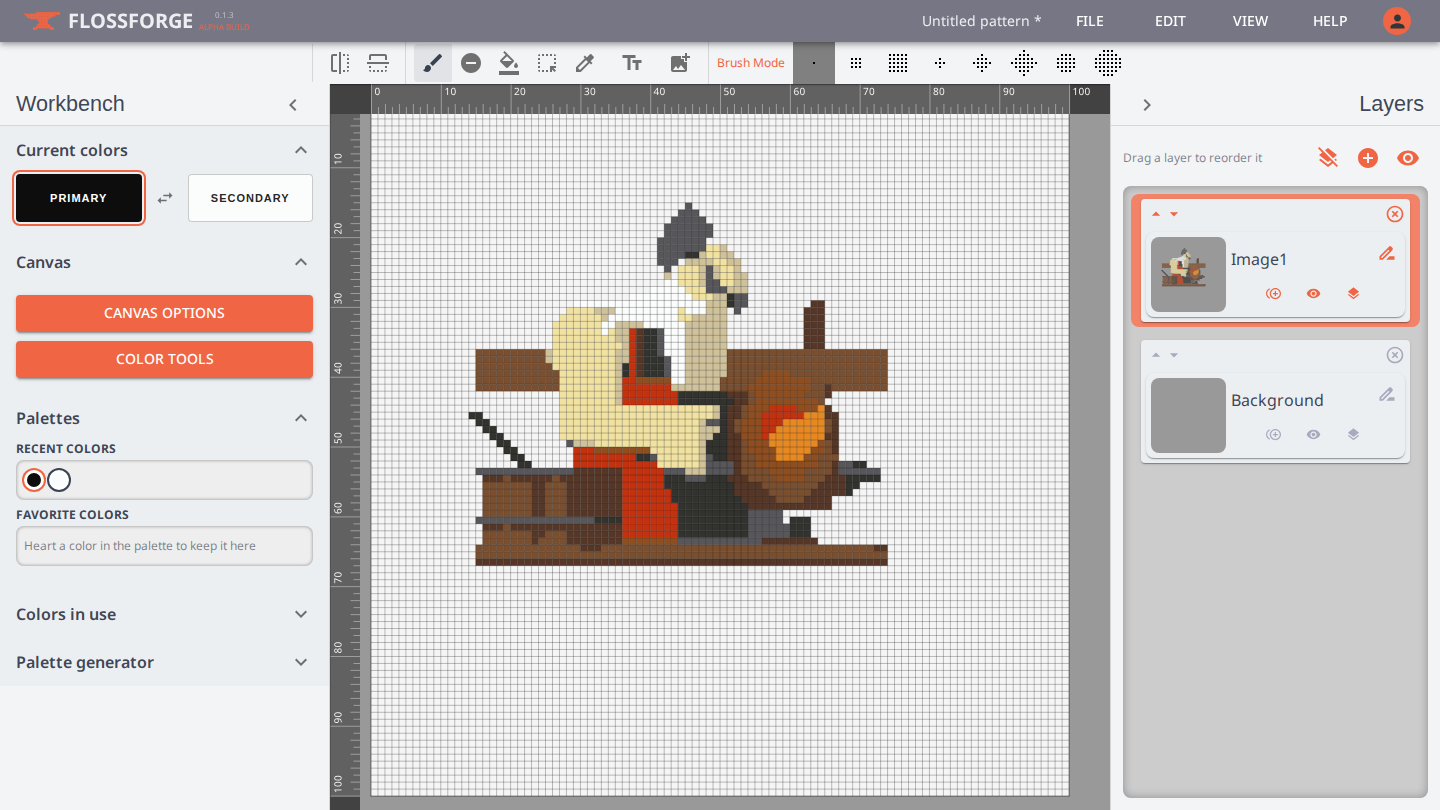
The canvas is a grid where each square is one full cross stitch. Everything else in the editor exists to put colors on it.
Size and view
Under Canvas in the Workbench:
- Grid Size sets how many stitches the canvas is across and down. The default is 100 by 100. Turn on Resizable to drag the edges of the grid instead.
- Stitch Count sets how many pixels each stitch takes on your screen, which is how you zoom. The design itself does not change.
- Rulers count stitches along the top and left edges and shade the part of the grid you are looking at. Borders draws the grid lines. Symbols shows each color's chart symbol in its squares, which is handy when two threads are close in color.
Scroll to move around a canvas larger than the window.
Tools
The toolbar above the canvas holds the tools. Each has a key, so you can switch without moving the mouse.
| Tool | Key | Notes |
|---|---|---|
| Brush | B | Click for one stitch, drag for a run. The brush patterns beside it stamp small shapes instead of single stitches. |
| Eraser | E | Clears stitches on the current layer. |
| Fill | G | Replaces a connected area of one color with the primary color. |
| Select | M | Drags out a rectangle. Drag inside it to move the stitches; Delete clears them; Esc drops the selection. |
| Eyedropper | I | Click a stitch to make its color the current color. You are returned to the tool you were using. The color comes from whatever is visible, whichever layer it is on. |
A drag that leaves the canvas keeps going. Dragging a selection into the Workbench still selects, trimmed to the edge of the grid.
Copy, cut and paste
With a selection on the canvas, Ctrl+C copies its stitches and Ctrl+X cuts them. Ctrl+V pastes at the mouse pointer, kept inside the grid, and leaves the pasted block selected so you can drag it straight into place. Empty squares in the copy do not erase what is under the paste. Each paste is one step for Undo.
Mirroring
The two buttons at the left of the toolbar mirror left and right, and top and bottom. Turn on either or both. Every brush stroke, erase and fill is then repeated across the middle of the grid, and dashed lines show where the middle is. Undo removes a stroke and its mirrored copies together.
Undo and redo
Undo and Redo are in the Edit menu. Each stroke, fill, paste, placed image and placed text is one step.